
Embedded Video Player for Website: Share and Embed Localized Videos
Stop using fragmented web players. Discover the seamless automated workflow to embed an interactive, translated video player directly on your website.
TL;DR: Standard video embeds lock your audience into a single language and subtitle track. By leveraging the advanced embedded video player for website options inside Braiv Player, creators can share multi-language, voice-cloned videos that auto-detect and adapt to a visitor's language natively.
How do you embed a translated video player into a website or web app?
To embed the player, log into Braiv Studio, click on your video to access the Language and Translations screen, click the **Share** button in the upper-right corner, and click **Copy** next to the embed code snippet. Paste this secure iframe code into your website's HTML, CMS (WordPress, Webflow, Wix), or web app to instantly render a fully localized video experience.
The Failure of Traditional Video Embeds
Embedding video on a website is standard practice for modern brands and creators. However, traditional embedded players (like YouTube, Vimeo, or generic HTML5 players) fail miserably when it comes to serving a global audience:
- Static Audio Tracks: Visitors are locked into whatever language the video was recorded in. They cannot experience high-quality translated audio dubs natively.
- Manual Subtitle Toggles: If subtitles are available, users must dive into obscure settings menu options to enable and select their translation track.
- Segmented Landing Pages: To serve different locales, companies are historically forced to maintain separate pages on their website (e.g.,
/es/videoor/pt/video) with different video files embedded, creating a massive maintenance and hosting nightmare.
To resolve these friction points, modern creators are adopting localized, multi-language embedded video players. Rather than uploading multiple versions of a video or forcing the user to toggle language settings, the player automatically detects the user’s browser locale and loads the corresponding voice-cloned audio and subtitle track seamlessly.
Step-by-Step: Sharing and Embedding Your Braiv Player
Sharing and embedding your fully translated, voice-cloned video assets with Braiv is simple. Here is how to access your sharing configurations.
1. Choose Your Target Video
From your Braiv Studio Video Library, select the video you wish to share or embed.
2. Open the Share & Embed Dashboard
Once loaded inside the video editor, navigate to the Language and Translations workspace. Look at the upper-right corner of the interface and click the Share button.
3. Share a Public URL
A configurations modal will appear. To quickly send a localized, high-performing preview of your video to clients, colleagues, or social feeds:
- Click the Copy button next to the Copy public video URL option.
- Your clipboard will hold a secured direct URL prompting viewers to an interactive web player that adapts to their browser language.
4. Copy the Web Embed Code
To place the interactive player directly onto your landing pages, support docs, or platform:
- In the Share modal, locate the Embedding section.
- Click the Copy button next to the embed iframe code.
- Paste this HTML code directly into your CMS or web builder. The video appears and functions natively on your page without sending visitors away.
5. Instant Social Media Sharing
You can also distribute your public video preview page across social networks instantly by clicking the dedicated social media icons (such as Twitter, Facebook, or LinkedIn) to automatically draft and share posts.
Comparing Embedded Video Players for Global Reach
When choosing how to distribute your localized video content across your web properties, understanding player capabilities is key:
1. Braiv Player
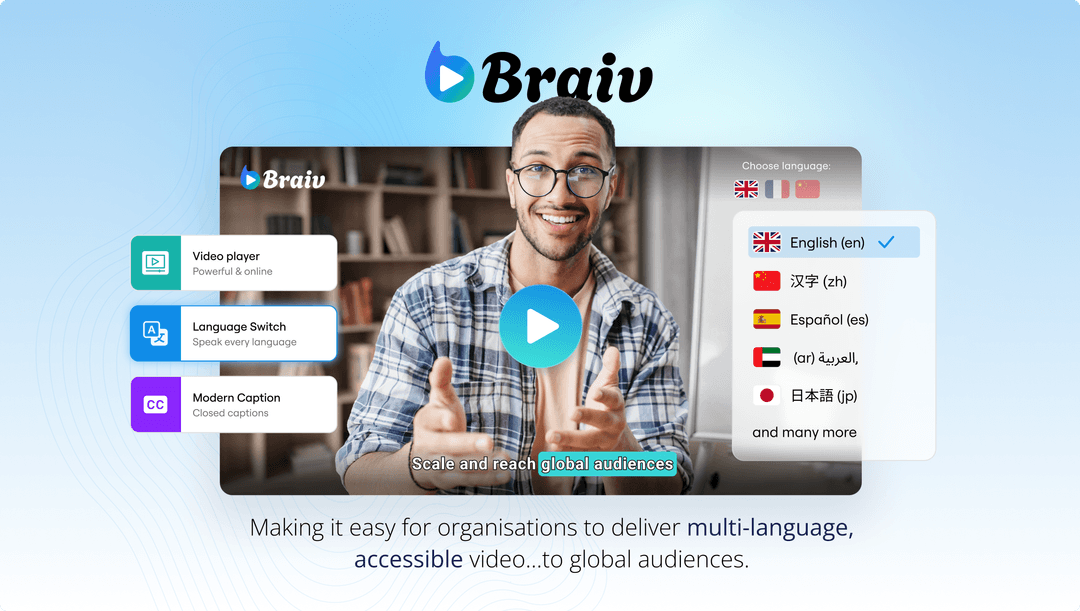
The Braiv Player has localization and multi-channel synchronization built-in. Instead of being a plain media frame, the player dynamically coordinates translated tracks, voice clones, and subtitles based on the viewer’s browser settings.
- Key Advantage: Direct native integration with Braiv’s translation and dubbing engine; zero layout shifts; auto-responsive sizes.
- Visual Reference:
2. Vimeo
Vimeo is a popular video hosting platform favored by businesses and creative professionals for its high-quality clean embedding options.
- Strengths: Beautiful, distraction-free player controls and custom branding options.
- Weaknesses: Vimeo does not generate or manage translated voice clones. If you want a dubbed video, you must upload separate audio tracks manually or create multiple video files, creating high management friction.
Optimizing Your Embedded Video for Conversions
To ensure your web video convert visitors into subscribers or customers:
- Place above the fold: Position your player where it is immediately visible to visitors without requiring scrolling.
- Enable multi-language auto-detect: Let the player auto-select localized audio to build instant connection.
- Use conversion deep links: Direct users from the video player directly into your sign-up or product funnel with smart parameters.
Try Braiv Video Dubbing
Translate your content into 80+ languages with realistic AI voices.